How to use SQL Developer to run SQL statements
In this chapter, learn how to use SQL Developer to enter and execute SQL statements and scripts, work with a Snippets window, solve common syntax errors and more.
 Murach's Oracle SQL and PL/SQL
Chapter 2, How to use Oracle SQL Developer and other tools
This chapter from Murach's Oracle SQL and PL/SQL explains how to work with Oracle SQL Developer and other tools. In this section, learn how to use SQL Developer to enter and execute SQL statements and scripts, work with a Snippets window, solve common syntax errors and more.
TABLE OF CONTENTS
- How to work with an Oracle database home page
- How to use SQL *Plus in Oracle
- How to use SQL Developer to work with an Oracle database
- How to view and edit table column definitions
- How to use SQL Developer to run SQL statements
- How to use the Oracle Database SQL Reference manual
Besides letting you review the design of a database, SQL Developer is a great tool for entering and running SQL statements. That's what you'll learn how to do next.
How to enter and execute a SQL statement
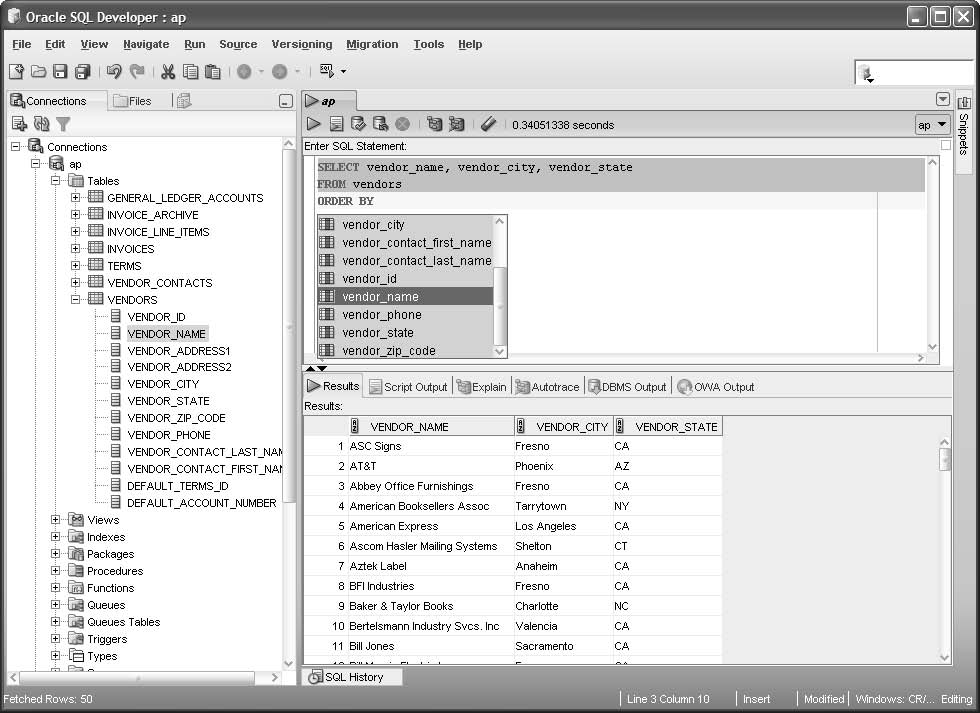
Figure 2-8 shows how to use the SQL Worksheet window to enter and execute a SQL statement. The easiest way to open a SQL Worksheet window is to use the drop-down list that's available from the Open SQL Worksheet button on the toolbar. First, you can click on the arrow to the right of this button to display all connections. Then, you can select the connection you want to use. This opens a Worksheet for that connection. But first, if the connection hasn't been used in the current session, you may be prompted to enter the password for the connection.
Once you open a SQL Worksheet, you can use standard techniques to enter or edit a SQL statement. As you enter statements, you'll notice that SQL Developer automatically applies colors to various elements. For example, keywords are displayed in blue. This makes your statements easier to read and understand and can help you identify coding errors.
When you enter SQL statements, you'll notice that SQL Developer automatically displays a drop-down list that helps you enter SQL statements. This feature often provides help for entering SQL keywords, table names, column names, and so on. In this figure, for example, SQL Developer displayed a dropdown list after I entered the ORDER BY keywords and pressed the spacebar. At this point, you can easily select a column name from the drop-down list.
If you experiment with this code completion feature, you'll find that SQL Developer doesn't display column names automatically until you enter the name of the table that's used by the statement. As a result, if you want to use the code completion feature, you may want to enter the table name before you enter the column names.
Most of the time, SQL Developer automatically displays the drop-down list after you enter some code followed by a space. Usually, that's what you want. However, there are times when you may want to manually prompt SQL Developer to display the drop-down list. To do that, you can press the Ctrl key and the spacebar at the same time (Ctrl+spacebar).
In addition, you can use SQL Developer to automatically comment or uncomment a line. To do that, you can move the insertion point into the line. Then, you can press Ctrl key and the front slash at the same time (Ctrl+/). To execute a single SQL statement like the one in this figure, you can press F9 or click the Execute Statement button in the toolbar for the SQL Worksheet window. If the statement returns data, that data is displayed in the Results tab. In this figure, for example, the result set returned by the SELECT statement is displayed. If necessary, you can adjust the height of the Results pane by dragging the bar that separates the SQL Worksheet window from the Results tab.
A SELECT statement and its results
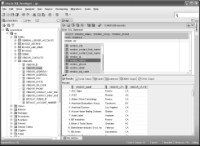
Figure 2-8 How to enter and execute a SQL statement
Description
- To open a new SQL Worksheet window, drop down the list from the Open SQL Worksheet button. Then, select the connection you want to use.
- To change the connection for the worksheet, use the Connections list.
- To enter a SQL statement, type it into the SQL Worksheet window.
- As you enter the text for a statement, the SQL Worksheet window applies color to various elements, such as SQL keywords, to make them easy to identify.
- As you enter the text for a statement, you can use the code completion feature to select SQL keywords, table names, column names, and so on.
- To manually display the code completion list, press Ctrl+spacebar.
- To comment out a line or to uncomment a line, press Ctrl+/.
- To execute a SQL statement, press the F9 key or click the Execute Statement button in the toolbar. If the statement retrieves data, the data is displayed in the Results tab of the SQL Worksheet window.
How to work with the Snippets window
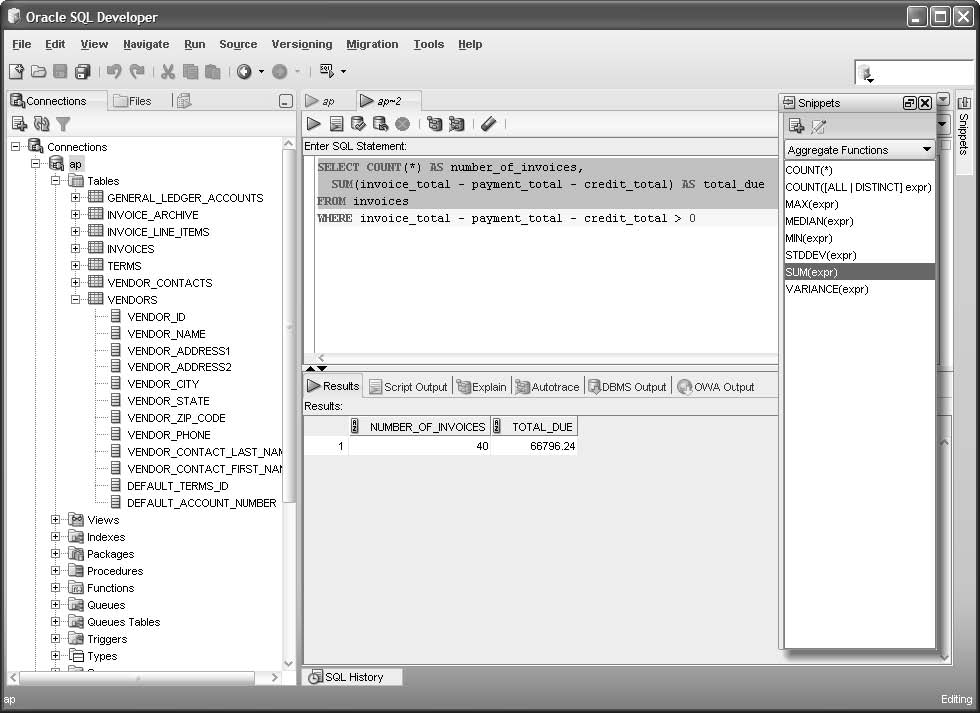
Figure 2-9 shows how to use the Snippets window to enter a snippet of code into the SQL Worksheet window. To start, if the Snippets tab isn't displayed on the right side of the SQL Developer window, you can select the Snippets command from the View menu to display the Snippets window. Otherwise, you can display the Snippets window by clicking on the Snippets tab that's displayed on the right side of the SQL Developer window. Then, you can use the drop-down list at the top of the Snippets window to select a category of snippets, and you can drag a snippet from the Snippets window into the SQL Worksheet window. At that point, you can edit the snippet code so it's appropriate for your SQL statement.
In this figure, for example, I dragged the COUNT(*) and SUM(expr) snippets into the SQL Worksheet window. Then, I edited the SUM(expr) snippet to replace the expr placeholder with a valid expression.
For now, don't worry if you don't understand the SQL statement presented in this figure. The main point is that you can use the Snippets window to enter a variety of SQL code. As you learn more about SQL statements, you'll see how useful this can be.
How to use the Snippets window
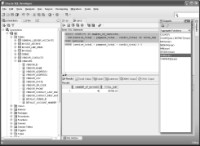
Figure 2-9 How to use the Snippets window
Description
- If the Snippets tab isn't displayed on the right side of the SQL Developer window, you can display it by selecting the Snippets command from the View menu.
- To display the Snippets window, click on the Snippets tab that's displayed on the right side of the SQL Developer window.
- To display another category of snippets, select the category from the drop-down list at the top of the Snippets window. The snippets are organized in 10 categories including: Date Formats, Number Formats, Date/Time Functions, Number Functions, Character Functions, Conversion Functions, and Pseudocolumns.
- To enter a snippet into your code, drag the snippet from the Snippets window into the SQL Worksheet window. Then, if necessary, edit the snippet code so it's appropriate for your SQL statement.
- The Snippets window will become more useful as you learn more about formats and functions.
How to handle syntax errors
If an error occurs during the execution of a SQL statement, SQL Developer displays a dialog box that includes the error number, a brief description of the error, and the location of the error in your code. In figure 2-10, for example, the dialog box displays an error number of "ORA-00942" and a brief description that says "table or view does not exist." This dialog box also indicates that the error occurred at line 2, column 5, where a table or view named Vendor is referenced.
In this example, the problem is that the Vendor table doesn't exist in the database. To fix the problem, you need to edit the SQL statement so the table is Vendors instead of Vendor. Then, you should be able to successfully run the SQL statement.
This figure also lists some other common causes of errors. As you can see, most errors are caused by incorrect syntax. However, it's also possible that you will get an error if you are connected as the wrong user. If, for example, you are connected as the EX user and you try to run a statement that references tables in the AP schema, you may get an error. Regardless of what's causing the problem, you can usually identify and correct the problem without much trouble. In some cases, though, it may be difficult to figure out the cause of an error. Then, you can usually get more information about the error by searching the Internet.
How to handle syntax errors
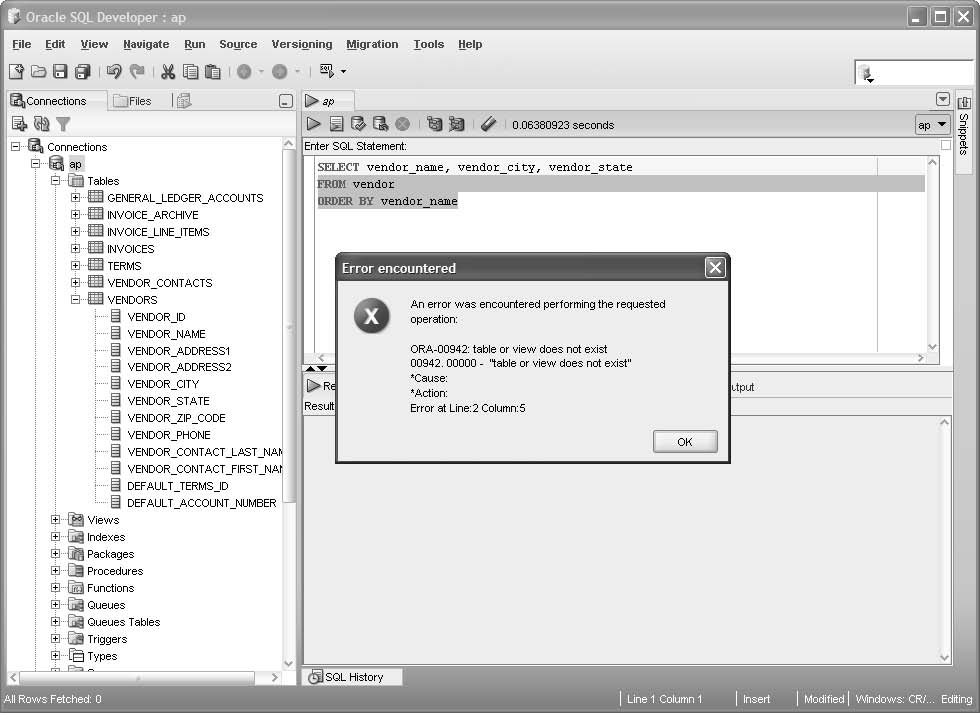
Figure 2-10 How to handle syntax errors
Common causes of errors
- Misspelling the name of a table or column
- Misspelling a keyword
- Omitting the closing quotation mark for a character string
- Being connected as the wrong user
Description
- If an error occurs during the execution of a SQL statement, SQL Developer displays a dialog box that includes an error code, a brief description of the error, and the location of the error in the code.
- Most errors are caused by incorrect syntax and can be corrected without any additional assistance. Otherwise, you can usually get more information about an error by searching for the error code or description on the Internet.
How to open and save SQL statements
After you get a SQL statement working the way you want it to work, you may want to save it. Then, you can open it and run it again later or use it as the basis for a new SQL statement. To save a SQL statement, you can use the standard Windows techniques shown in figure 2-11.
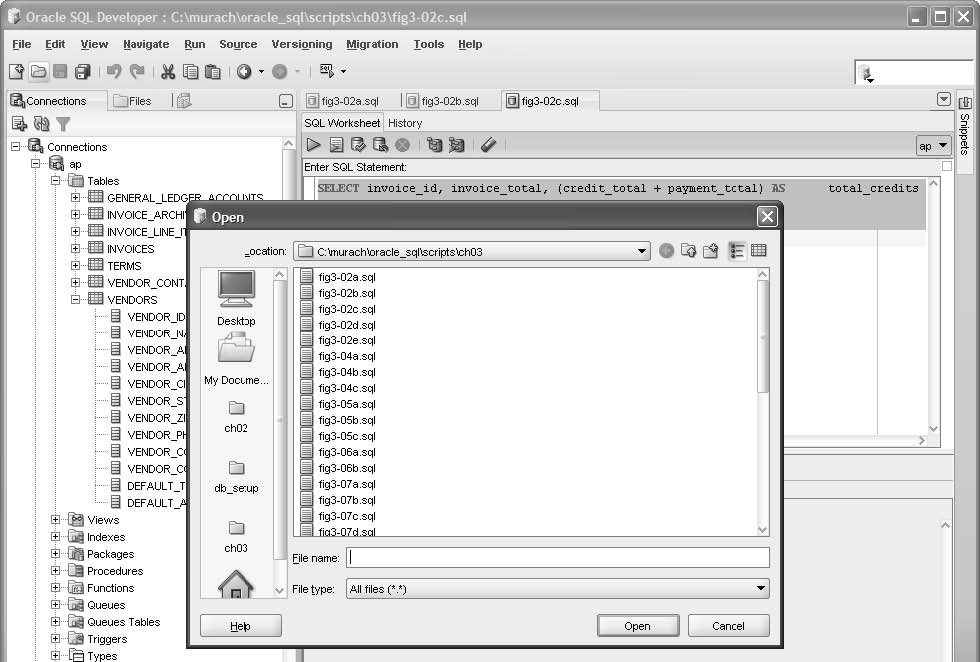
To open a file that has been saved, you use the Open command. In this figure, for example, the Open dialog box shows the SQL statements that have been saved for chapter 3. They are saved in the scriptsch03 directory that is created when you download and install the source code for this book. The screen in this figure shows the tabs for three files that have been opened for that chapter. Note that the names of these files have the sql extension.
After you open two or more SQL worksheets, you can switch between the SQL statements by clicking on the appropriate tab. Or, you can select the SQL statement from the file list that's available just above the Connections list. Then, you can cut, copy, and paste code from one SQL statement to another. When you open a saved SQL file, SQL Developer doesn't set a connection for the SQL statement within the file. As a result, you must specify a connection before you can run the SQL statement by using the Connections list. If you don't do that, SQL Developer will prompt you to select a connection when you try to run the statement.
To save a new SQL statement in a new file, you use the Save command. To save a modified SQL statement in its original file, you also use the Save command. And to save a modified SQL statement in a new file, you use the Save As command.
To set the default directory that you want to use for saving new SQL statements, you can use the Tools --> Preferences command that's described in this figure. Note, however, that there's no way to set the default directory for opening files.
For both the Open and Save dialog boxes, you can specify a recently used directory by clicking on its icon. In this figure, for example, the Open dialog box shows that the ch02, ch03, and db_setup directories have all been used recently. As a result, you can easily specify one of these directories by clicking on it.
The open file dialog box
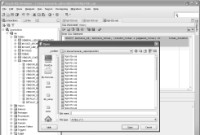
Figure 2-11 How to open and save SQL statements
Description
- To open a SQL file, click the Open button in the toolbar, press Ctrl+O, or select the File-->Open command. Then, use the Open dialog box to locate and open the SQL file.
- To specify a connection for a SQL statement that you open, select a connection from the Connections list (see figure 2-8). Otherwise, when you try to run the statement, SQL Developer will display a dialog box that prompts you to select a connection.
- To switch between open statements, select the appropriate tab. Or, click on the dropdown arrow that's displayed to the right of the SQL Worksheet tabs, and select the file name from the file list.
- To cut, copy, and paste code from one SQL statement to another, use the standard Windows techniques.
- To save a SQL statement, click the Save button in the toolbar, press Ctrl+S, or select the File --> Save command. Then, if necessary, use the Save dialog box to specify a file name for the SQL statement.
- To change the default directory for new statements that you want to save, use the Tools --> Preferences command. Then, expand the Database node, click on the Worksheet Parameters node, and change the default path for scripts.
- To specify a recently used directory in an Open or Save dialog box, click on the icon for the recently used directory.
How to enter and execute a SQL script
A SQL script is a file that contains one or more SQL statements. So far in this chapter, each of the SQL files that has been presented has been a SQL script that contains just one SQL statement. However, a SQL script typically contains multiple statements. When you code multiple SQL statements within a script, you must code a semicolon at the end of each SQL statement. For example, figure 2-12 shows a script that contains two SQL statements. Then, you can press F5 or click the Run Script button to execute all of the SQL statements that are stored in the script. When you do, the results of the script will be displayed in the Script Output tab. However, if you want to execute a single SQL statement that's stored within a script, you can do that by moving the insertion point into the statement and pressing the F9 key or clicking the Execute Statement button in the toolbar. Then, if the statement retrieves data, the data is displayed in a Results tab like the one in figure 2-8. In this figure, for example, the insertion point is in the first SQL statement, and this statement is a SELECT statement that retrieves data. As a result, if you press the F9 key, the result set is displayed in the Results tab.
A SQL script and its results
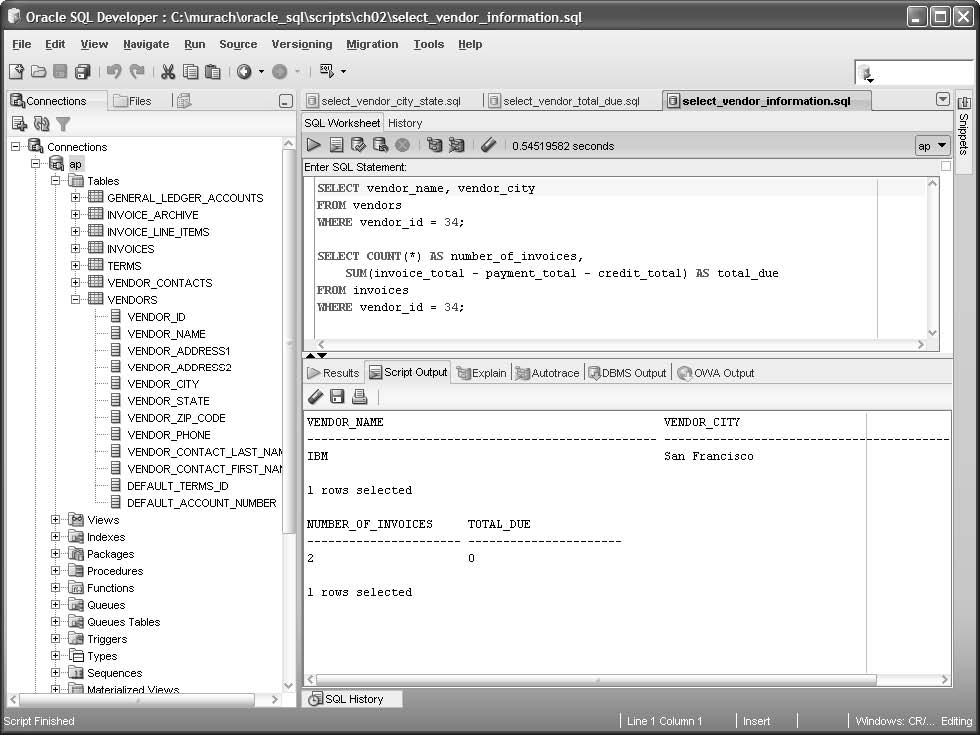
Figure 2-12 How to enter and execute a SQL script
Description
- A SQL script is a file that contains one or more SQL statements. When you code a script that contains more than one statement, you must code a semicolon at the end of each statement.
- To run the entire SQL script, press the F5 key or click the Run Script button that's located just to the right of the Execute Statement button. The results are displayed in the Script Output tab.
- To execute one SQL statement within a script, move the insertion point into the statement. Then, press the F9 key or click the Execute Statement button in the toolbar. If the statement retrieves data, the data is displayed in the Results tab.
Download the chapter "How to use Oracle SQL Developer and other tools" in PDF form.
Copyright info
This chapter is excerpted from the book, Murach's Oracle SQL and PL/SQL, authored by Joel Murach, published by Mike Murach & Associates, Inc., August, 2008. ISBN: 978-1-890774-50-9.
Continue to the next section: How to use the Oracle Database SQL Reference manual